Section 1.1
Create and access your workspace
- Select Get Started from the landing page.
- Register your organization name, work email, and password.
- Alternatively, choose Continue with Google on sign-up or sign-in when Google SSO is enabled for your deployment.
- Sign in with your email and password, or use Google SSO on return visits.
- If you forget your password, use Forgot password? on the sign-in page. CloudSure sends reset instructions to your email when an account exists for that address.
- If two-factor authentication (2FA) is enabled on your account, enter your authenticator code after sign-in. You can optionally trust the current browser to skip 2FA on future visits for a limited period.
Example View
 1
1
Sidebar navigation
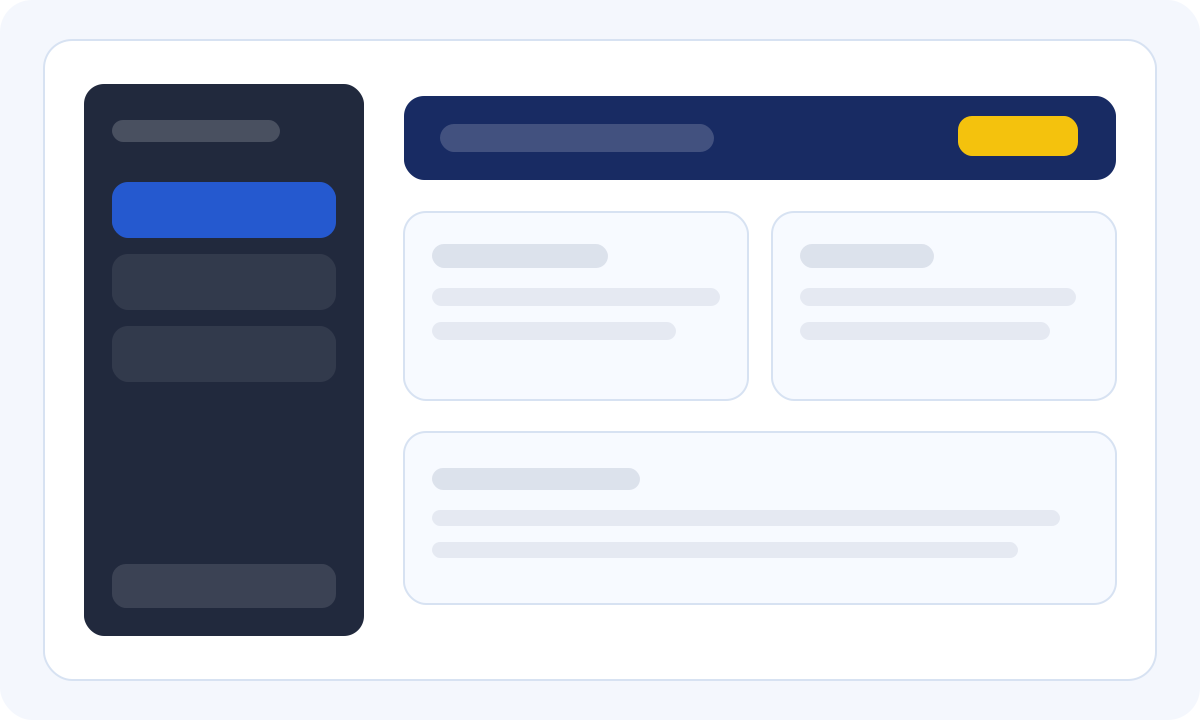
The left sidebar includes Navigation (Dashboard, Settings, and Users for tenant admins), a Cloud section to switch between AWS, Azure, and GCP dashboards, and a Resources panel with documentation links. Use the collapse control at the top to expand or minimize the sidebar. The footer shows your organization name, role badge, and Sign Out.
2
Resources and scan status
The Resources panel links to this documentation hub, the getting started guide, and the credentials guide. When you have run scans, a Latest scan card shows the scan number and status (Completed, Running, Queued, or Failed). Before your first scan, a hint directs you to configure credentials on the dashboard.
3
Dashboard overview
Each cloud dashboard shows compliance widgets, a compliance trend chart, Quick Actions for credentials and scans, and the latest findings table after a successful scan. The dashboard header includes a Last updated timestamp and a notifications bell for scan-related alerts.
Section 1.2 — Settings and preferences
Open Settings from the sidebar to manage your profile avatar, security options, team members (admins), and application preferences such as light, dark, or system theme. Cloud credentials are configured from the provider dashboard Quick Actions panel, not from Settings.